Category: Troubleshooting

  • Endless loading/spinner on the checkout page

    Endless loading/spinner on the checkout page

    After fiddling for quite some time, disabled and enabled plugins, looked at browser console for clues, I found the solution to be this CSS code:

    /* Fix issues with jquery overlay blocking checkout button */
    .woocommerce .blockUI.blockOverlay {
    position: relative!important;
    display: none!important;
    }

    Source page: https://wordpress.org/support/topic/checkout-page-hangs/

  • The DNS server 8.8.8.8 is not a valid IP address error

    The DNS server 8.8.8.8 is not a valid IP address error

    If you see this error:

    The DNS server 8.8.8.8 is not a valid IP address

    You probably have selected the IPv6 instead of IPv4 setting:

    IPv4 DNS servers could be 8.8.8.8 and 8.8.4.4

    While IPv6 in this case should be:

    • 2001:4860:4860::8888
    • 2001:4860:4860::8844
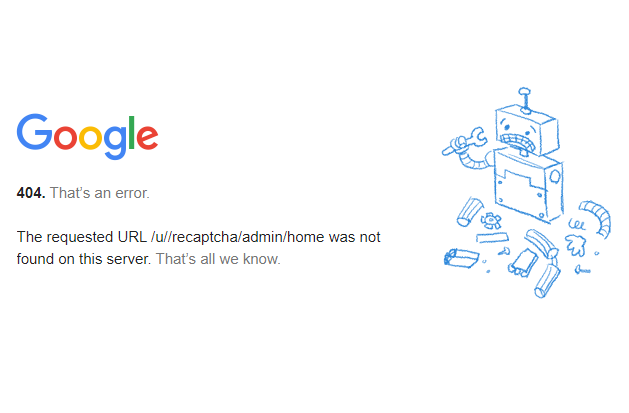
  • 404. That’s an error.

    404. That’s an error.

    When you encounter this error on Google:

    The requested URL /u//recaptcha/admin/home was not found on this server. That’s all we know.

    Here is how you solve it:


    METHOD 1

    This mostly happens when you have been logged into multiple Gmail accounts a the time.

    The easiest resolve for this I have found is to log out from all accounts and log in back with the account you want to use re-captcha with.

    Click on “admin console” button and you are in…


    METHOD 2

    Go to google.com, switch to the Gmail account you want to use, type “recaptcha” in the search box and click the “admin console” button…


  • Google Maps API error: Geocoding Service: This API project is not authorized to use this API.

    Google Maps API error: Geocoding Service: This API project is not authorized to use this API.

    You receive the following error message when trying to view Google Maps:Geocoding Service: This API project is not authorized to use this API.  For more information on authentication and Google Maps JavaScript API services please see: https://developers.google.com/maps/documentation/javascript/get-api-key

    You will need to enable the Geocoding API under APIs in the Google Cloud Platform Console to resolve this error. To do so, please follow the steps below:

    1. Go to GCP dashboard https://console.cloud.google.com/apis/dashboard?
    2. Click on “ENABLE APIS AND SERVICES”
    3. Search for ‘Geocoding API’
    4. Click on the ‘Geocoding API’ result
    5. Click on the Enable button
Nerko Marketing & Tech
Privacy Overview

This website uses cookies so that we can provide you with the best user experience possible. Cookie information is stored in your browser and performs functions such as recognising you when you return to our website and helping our team to understand which sections of the website you find most interesting and useful.